The toolbar
Every roll opens as a contact sheet with one floating bar beside it. Tap a tool to pick it up or put it down. Press and hold a tool to open its tray. The same bar follows you into a single frame.
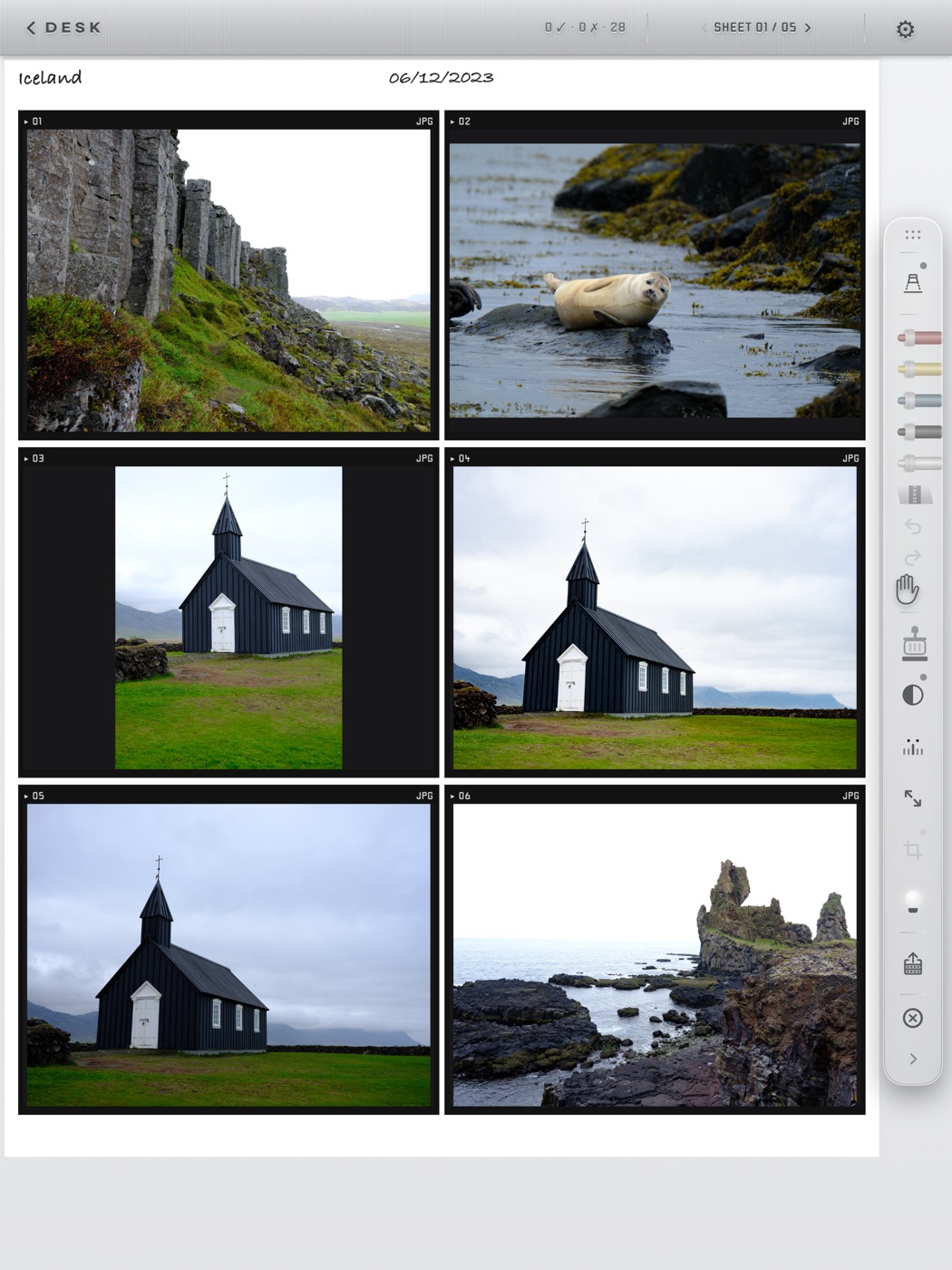

Pencil or finger. Until an Apple Pencil touches the glass, a finger draws. From the first Pencil stroke on, the Pencil draws and your finger becomes the hand: it pans, turns pages and taps frames, as on a real light table. A Pencil double-tap (or a Pencil Pro squeeze) steps the loupe's zoom while the loupe is on, and otherwise walks back through your last five pencil, colour and width choices.
The chinagraph pencils
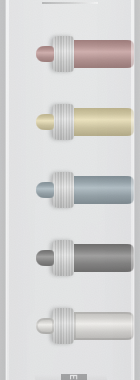
Red, yellow, blue, black and white, in that order: wax pencils for marking a sheet. Tap one to pick it up; tap it again to put it down and go back to the hand. Draw on the sheet, in a frame, or into the loupe. Marks never alter your files: they live beside the roll and ride along onto sheets, exports and the marked JPEGs.

Hold a pencil to open its width tray: Thin, Medium, Thick, Extra Thick, Heavy and Max. Each colour remembers its own width.
The eraser
Tap to pick up the eraser. By default it is a SPLIT eraser: it cuts a stroke where you rub, leaving the rest.
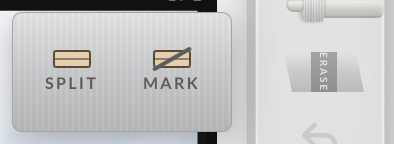
Hold it and choose MARK to remove any whole stroke you touch instead.
Undo and redo
Take back the last change to the marks, or put it back. Every pencil stroke, stamp, black-and-white switch and note is a step. The two keys light only when there is a step to take. On a keyboard, ⌘Z and ⇧⌘Z.
Pan
The hand. With a pencil or the eraser in your hand, tapping Pan switches what a finger does: pan the sheet, or draw. With nothing armed the finger is always the hand. The bar's readout tells you which: Finger pans or Finger draws.
The verdict stamp
Picks and rejects. Tap the stamp to arm the last verdict you used, then tap frames to stamp them; tap the stamp again to put it down.
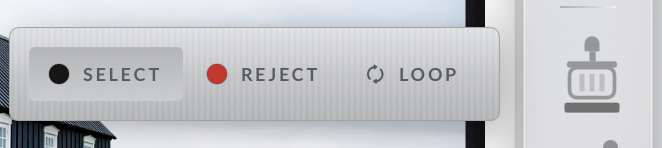
Hold it to choose SELECT or REJECT, or LOOP, where each tap on a frame cycles reject, select, unstamped. The plate counts them up (2 ✓ · 1 ✗ · 16), and the verdicts are what the ROLL screen's Favorites, album and Delete rejected read.
The loupe
Pinned at the top of the bar. Tap to switch it on in the mode you last used; tap again to put it away. Its LED reads green for ON, amber for HOVER, grey for OFF.
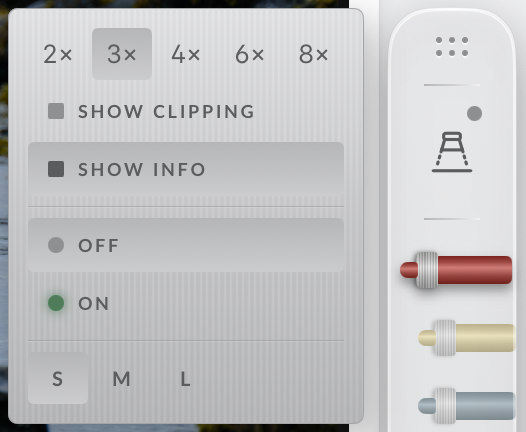
Hold for the tray.
2× · 3× · 4× · 6× · 8× sets the magnification.
SHOW CLIPPING paints blown highlights and blocked shadows.
SHOW INFO adds the frame's exposure line.
OFF / HOVER / ON is the mode. HOVER appears once a Pencil has been seen and follows the hovering tip. In ON mode the loupe is a glass you drag with a finger, and you can draw inside it.
S / M / L is the size.
Black & white
Tap to view the roll in black and white, tap again for colour.
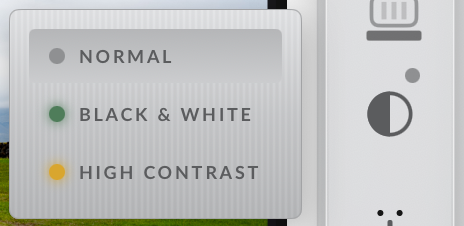
Hold for NORMAL, BLACK & WHITE or HIGH CONTRAST. This is a way of looking, not an edit: your files and your exports keep their colour.
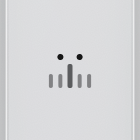
Sheets
On the contact sheet only. Tap to show the sheet scrubber, a second small bar with one tick per sheet (a dot on any sheet holding a select), a readout such as SHEET 02 / 05, and a SELECTS ONLY key that lays out just your picks. Selects-only is a temporary view: it is never saved, the plate shows a SELECTS badge while it is on, and the whole roll is one tap away. The scrubber has its own grip: drop it on the toolbar to attach it, or near any edge to park it.
Full resolution
On the sheet it pulls the frames of this sheet in at full resolution, and remembers that per page. In a single frame it shows the original file at native resolution. It dims with the note Source unavailable when the card is out.
Easel blades
In a frame only (on the sheet it reads Open a frame to use). Four black blades you slide in to try a crop, the way you would on an enlarger easel. The frame itself is never cropped.
Hold the key to lock the blades where they are.
The bulb
Lights on, lights off: switches between the light table and the darkroom. Everything else stays put.
Roll actions
Opens the ROLL screen: contact sheets and photos to share, save or print, your marks to iCloud or the card, and the clean-up of rejects.
Close, and back
Always the last tool. On the sheet it closes the roll and returns to the desk. In a frame it is Back to sheet. The plate does the same: its wordmark reads ‹ DESK on the sheet and ‹ ROLL in a frame.
The grip, and hiding the bar
Drag the grip to carry the bar anywhere. It turns to face whichever edge you rest near and docks there when you let go; pushed past the top it takes over the plate. The chevron at the far end tucks the bar into a tab on the edge; tap the tab to bring it back. The edge and the hidden state are remembered. On the iPhone Duo the bar is a fixed strip beside the screen, with no grip.
The plate

- ‹ DESK closes the roll (in a frame it reads ‹ ROLL and goes back to the sheet).
- The pager,
‹ SHEET 01 / 04 ›orFRAME 09 / 16, turns pages or steps frames. A swipe does the same. 2 ✓ · 1 ✗ · 16: picks, rejects, frames.- The gear opens Settings. Roll-specific choices live on the ROLL screen instead.